Interactive JupyterLab mounts /mnt/project as read-only – how to enable RW?

Hi all,
I’m working on an abdominal-MRI project and need to save / edit large segmentation outputs inside the project bucket. When I start Tools → JupyterLab (template JupyterLab with Python, R, Stata, ML, Image Processing), the instance launches, but any write to /mnt/project fails with
"Read-only file system"
Key observations / attempts:
- The launch dialog doesn’t show a File-System toggle (RW / RO), so I suspect the project is in analysis-only mode.
-
My role is Admin / Contributor; permissions shouldn’t block writes.
Questions
Is there a way (UI setting or Support request) to switch an analysis-only project back to the standard interactive configuration so JupyterLab gets a read-write mount by default? I have also tried a lot in the terminal(using dxfuse)… FAILED many times with this similar error.
[notebook screenshot]
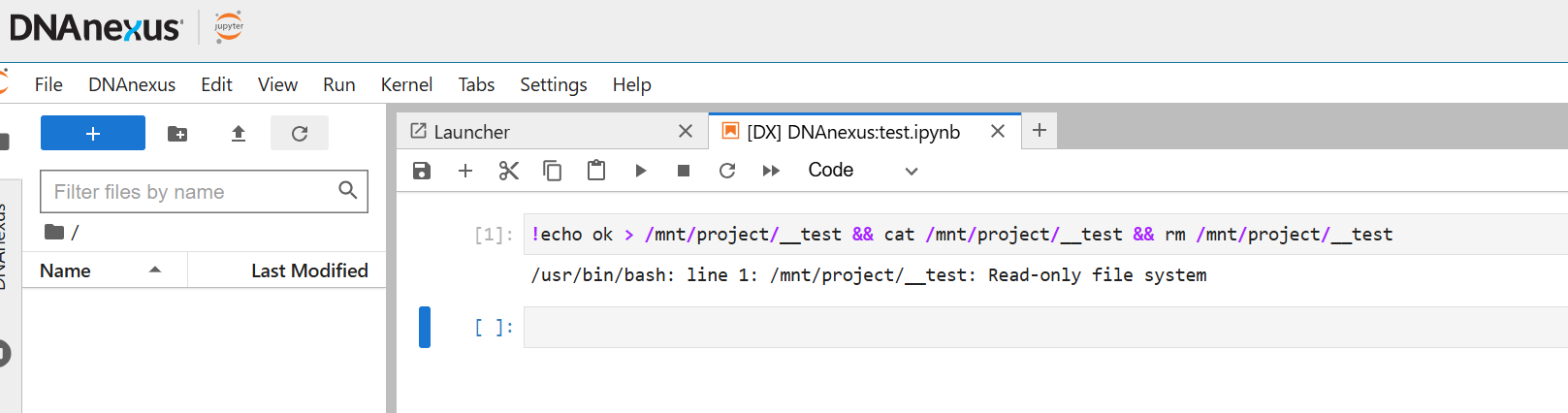
[terminal screenshot]

Comments
1 comment
Hi Shuangshuanag,
You can access and manage files in your project by navigating through your folders using the DNAnexus tab in JupyterLab. This allows you to view and interact with your project files directly.
To work with files in your JupyterLab environment:
dx downloadcommand to bring a file from your project space into the JupyterLab environment for editing.dx uploadcommand to save the updated file back to your project space.Please note that the JupyterLab environment is temporary. Please ensure that you upload any modified files back to your project before your session ends, or your changes may be lost.
Also, please note that dx fuse provides read-only access to files, you won’t be able to make edits or save changes through it.
I hope this helps. Thank you for using the community forum.
Please sign in to leave a comment.