We've listened to your feedback and have made improvements to the Microsoft Authenticator login process to make accessing AMS clearer, simpler and more intuitive.
These improvements include clearer instructions throughout the login process, consistent UK Biobank branding, and a fix to the previously reported issue with the ‘Forgot your password?’ option, ensuring you can now easily reset your AMS password if needed.
If you have already set up Microsoft Authenticator for AMS, please follow the updated step-by-step guide below to see what to expect when logging in.
If you have not yet set up Microsoft Authenticator, please click here to refer to our separate guide for first-time setup.
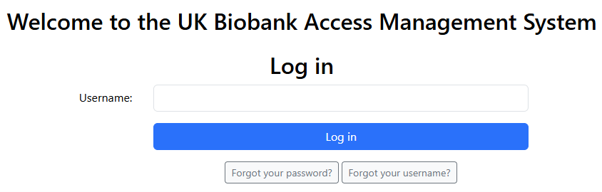
Step 1: Visit https://ams.ukbiobank.ac.uk/ams/ and enter your Username
Step 2: Enter your password then click "Log in"
Step 3. You will then be prompted to enter a 6 digit code
To do so, open your Microsoft Authenticator app and navigate to your registered AMS profile in the Microsoft app.
Step 4. Enter the 6 digits shown on MFA app into the verification page in AMS and click ‘Verify’ to complete your login.
Related to
Comments
0 comments
Article is closed for comments.